

Install from WordPress dashboard
1
Find the plugin
In your WordPress admin, go to Plugins → Add Plugin and search for AltTextLab.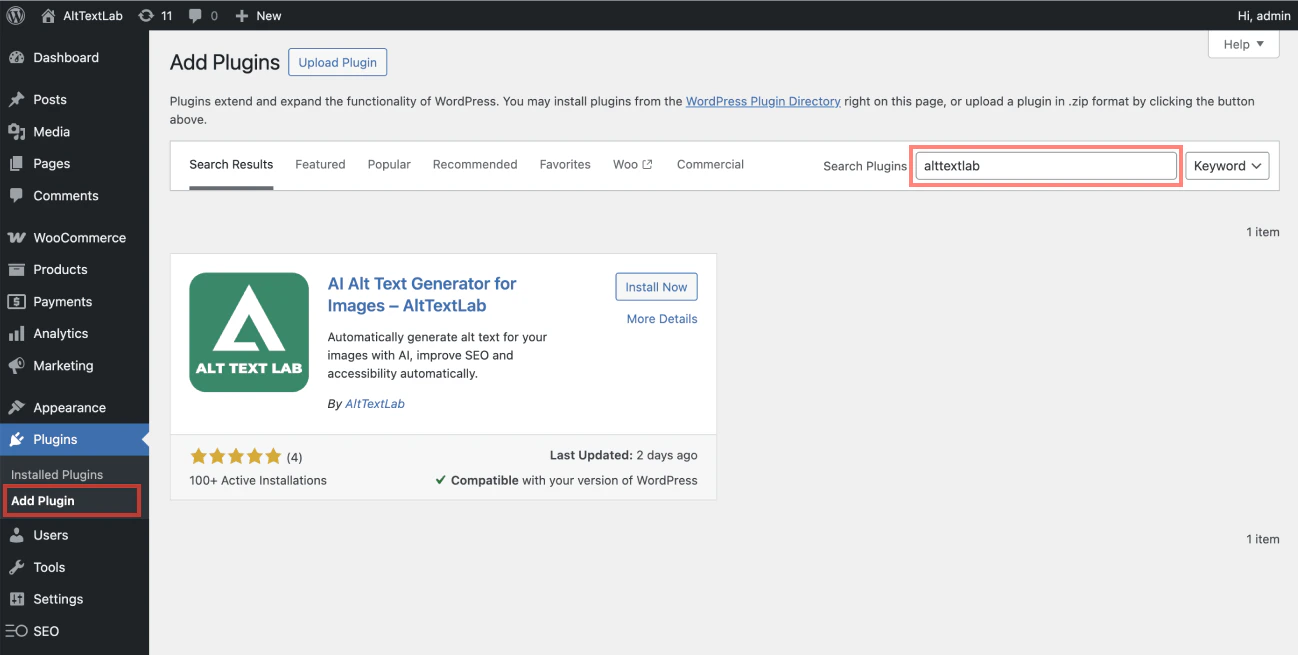
2
Install and activate
Click Install Now, then Activate.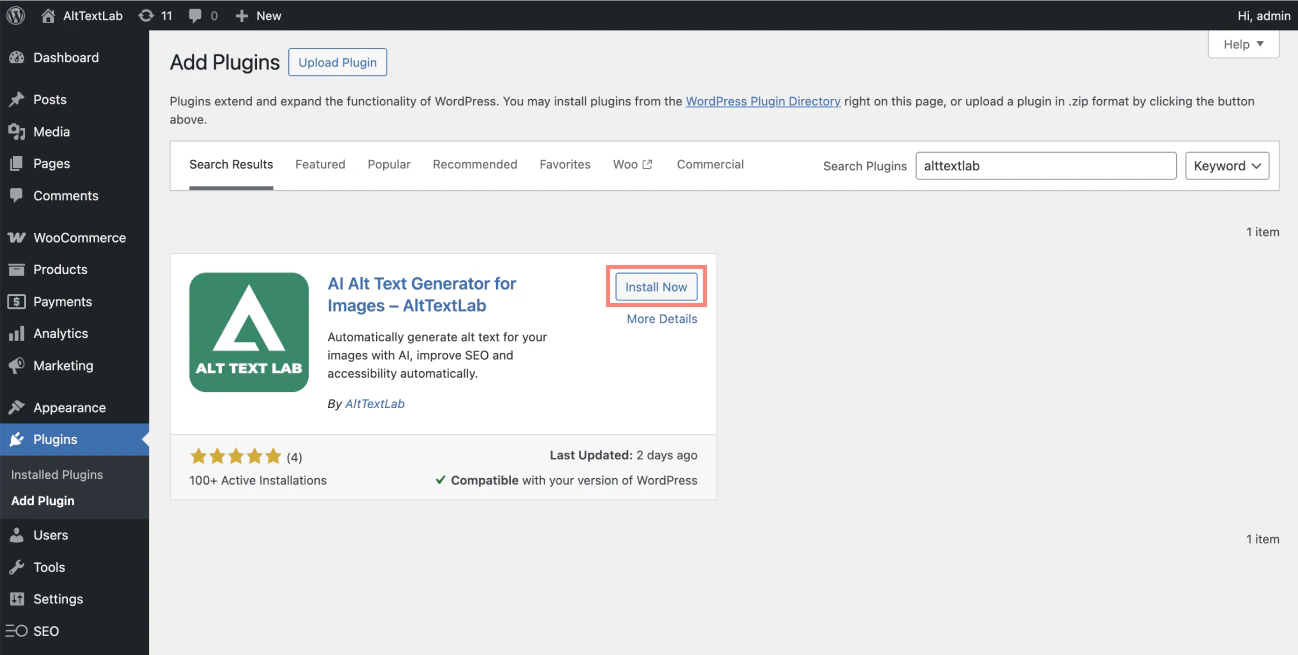
3
Add your API key
In the WordPress admin sidebar, go to AltTextLab → Account Settings. Paste your API key into the corresponding field and click Save.You can find your API key in the AltTextLab dashboard. See API key for instructions on creating and managing keys.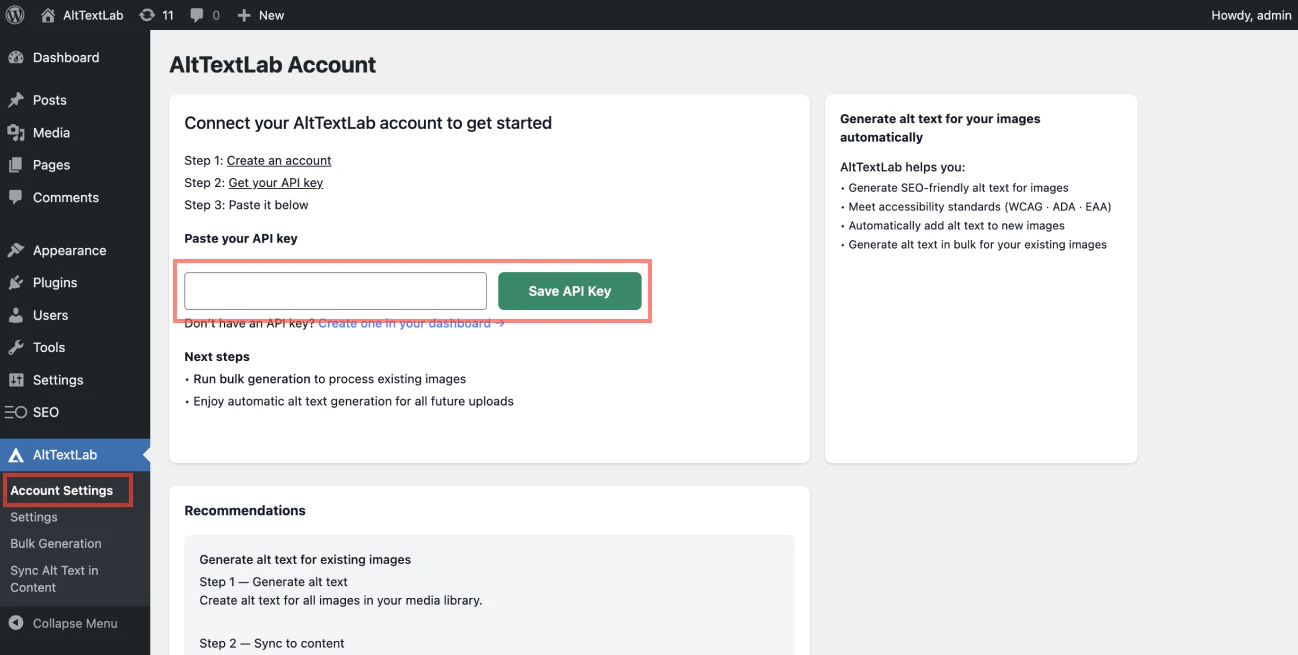
4
Configure language, writing style, and more
Before generating alt text, configure your preferred language, writing style, and other options in Settings.
Manual installation
If you prefer to upload the plugin file directly:- Download the
.zipfile from wordpress.org/plugins/alttextlab - In WordPress admin, go to Plugins → Add New → Upload Plugin
- Select the
.zipfile and click Install Now - Activate the plugin, then follow steps 3–4 above to add your API key