> ## Documentation Index
> Fetch the complete documentation index at: https://www.alttextlab.com/docs/llms.txt
> Use this file to discover all available pages before exploring further.
# Installation
> Install the AltTextLab plugin and connect your API key.
## Install from WordPress dashboard
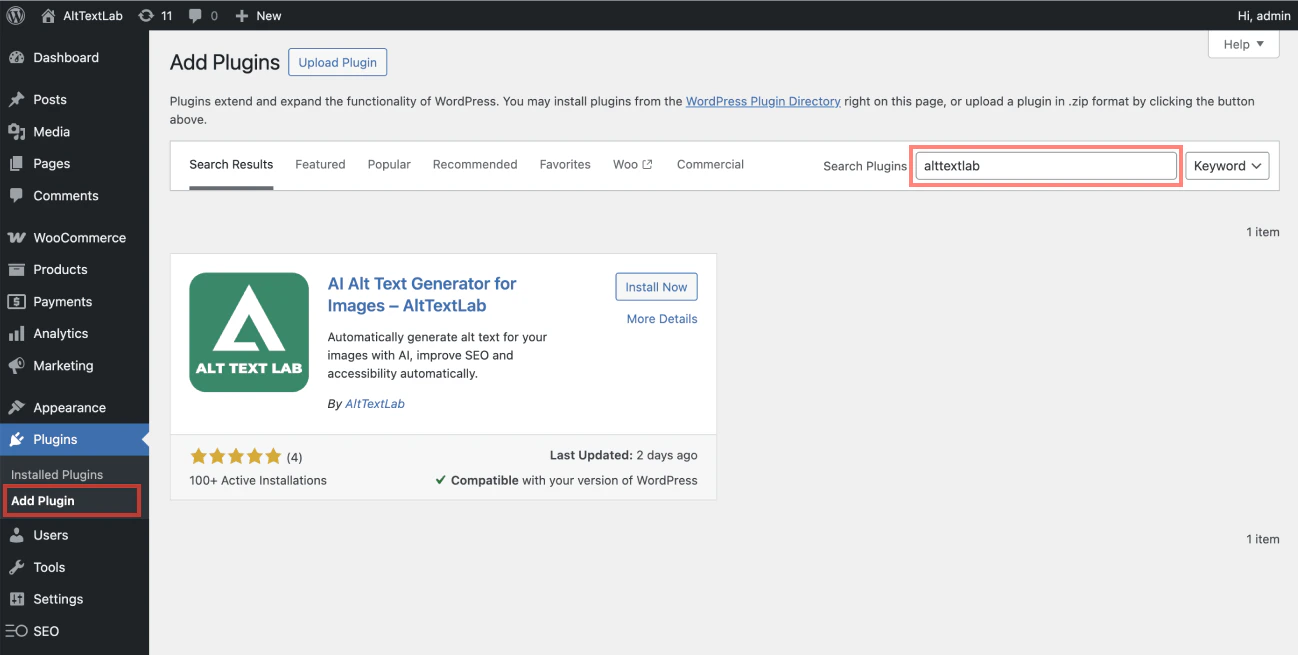
In your WordPress admin, go to **Plugins → Add Plugin** and search for **AltTextLab**.
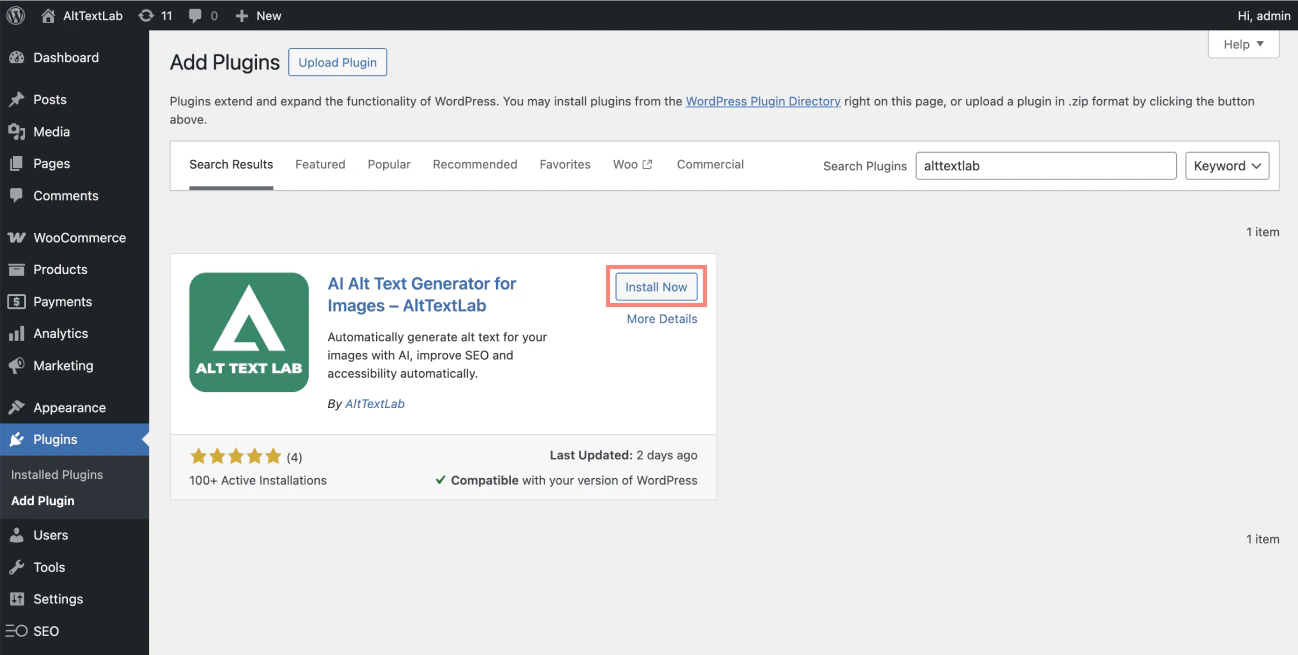
 Click **Install Now**, then **Activate**.
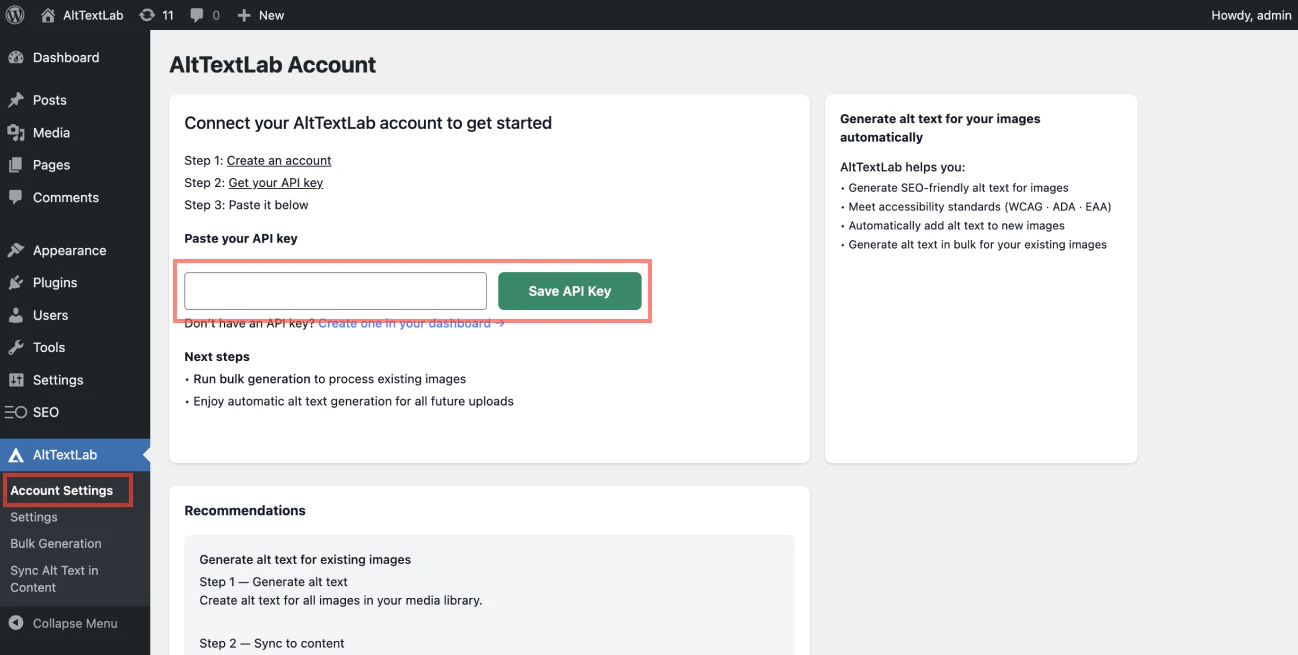
 In the WordPress admin sidebar, go to **AltTextLab → Account Settings**. Paste your API key into the corresponding field and click **Save**.
You can find your API key in the [AltTextLab dashboard](https://app.alttextlab.com/settings/api-keys). See [API key](/api/api-key) for instructions on creating and managing keys.
In the WordPress admin sidebar, go to **AltTextLab → Account Settings**. Paste your API key into the corresponding field and click **Save**.
You can find your API key in the [AltTextLab dashboard](https://app.alttextlab.com/settings/api-keys). See [API key](/api/api-key) for instructions on creating and managing keys.
 Before generating alt text, configure your preferred language, writing style, and other options in [Settings](/integrations/wordpress/settings).
The plugin fetches images by URL, so your site needs to be publicly accessible. If your site is local, password-protected, or behind a firewall, disable **This site is reachable over the public internet** in **AltTextLab → Settings** — the plugin will upload image files directly instead.
## Manual installation
If you prefer to upload the plugin file directly:
1. Download the `.zip` file from [wordpress.org/plugins/alttextlab](https://wordpress.org/plugins/alttextlab)
2. In WordPress admin, go to **Plugins → Add New → Upload Plugin**
3. Select the `.zip` file and click **Install Now**
4. Activate the plugin, then follow steps 3–4 above to add your API key
Before generating alt text, configure your preferred language, writing style, and other options in [Settings](/integrations/wordpress/settings).
The plugin fetches images by URL, so your site needs to be publicly accessible. If your site is local, password-protected, or behind a firewall, disable **This site is reachable over the public internet** in **AltTextLab → Settings** — the plugin will upload image files directly instead.
## Manual installation
If you prefer to upload the plugin file directly:
1. Download the `.zip` file from [wordpress.org/plugins/alttextlab](https://wordpress.org/plugins/alttextlab)
2. In WordPress admin, go to **Plugins → Add New → Upload Plugin**
3. Select the `.zip` file and click **Install Now**
4. Activate the plugin, then follow steps 3–4 above to add your API key